Up-spec your C-Sat with Mr. Smiley and Mr. Sad! | The place for Zendesk users to come together and share
Skip to main content
Jul 18, 2016 5:02 AM UTC

Up-spec your C-Sat with Mr. Smiley and Mr. Sad!

We've recently made some modifications to our C-Sat automation.


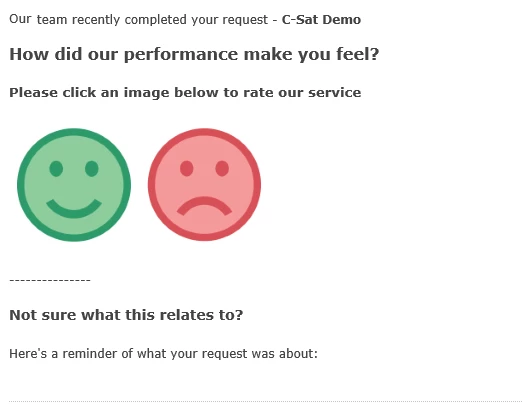
This is how the new email looks...
Want to know how?


  1.  If you haven't already - activate 'Customer satisfaction surveys' (info here)
  2. Download the smileys below and upload these as assets to your helpcenter (or host them elsewhere) 

     

  3. Navigate to Settings > Automations - and locate the 'Request customer satisfaction rating' automation
  4. Select to Edit this
  5. Change the notification to requester with the info below - don't forget to substitute your image location.


<span style="padding: 0px ; line-height: 18px; font-family: 'Lucida Grande',Verdana,Arial,sans-serif; font-size: 12px; color:#444444;">

Our {{ticket.group.name}} team recently completed your request - <strong>{{ticket.title}}</strong>


<h3 style="font-size:16px;">How did our performance make you feel?</h3>

<h5>Please click an image below to rate our service</h5>

<a href="{{satisfaction.positive_rating_url}}" alt="Happy"><img src="https://p5.zdassets.com/hc/theme_assets/YOUR IMAGE LOCATION/happy-face.png"></a><a href="{{satisfaction.negative_rating_url}}" alt="Sad"><img src="https://p5.zdassets.com/hc/theme_assets/YOUR IMAGE LOCATION/sad-face.png"></a>

---------------

<h4 style="font-size:14px; font-weight:bold;">Not sure what this relates to?</h4>

Here's a reminder of what your request was about:
</span>
{{ticket.comments_formatted}}


And that's about it!  We've had good response to this.

Obviously you can modify the message and add extra rules to suit your requirements.

58 replies

Jun 2, 2017 10:12 AM UTC

Hey Guys.

Is it possible to modify the looking of the webpage where tothe satisfaction survey sends you after clicking on "Good" or "Bad" ?

Thanks 

Edouard

Translate
Ryan24
Employee
Jun 7, 2017 6:52 PM UTC

Hey Edouard! Unfortunately not at this time --- If you have any great ideas, we do have our product feedback forum, which our product managers do look at! Be sure to drop in there and leave a suggestion if you do!


Here's a direct link:
https://support.zendesk.com/hc/en-us/community/topics/200132066-Product-feedback

Translate
Jul 12, 2017 4:52 AM UTC

Hi Everyone

i am not that tech savy and not too sure how to save these as an asset

are you able to walk me through it?

Translate
Andrew42Author
Jul 13, 2017 3:49 AM UTC

Hello Michaela, if you have Guide pro, or Legacy, you should be able to go into the theme editor and upload assets


If not, try just adding these to a public article - maybe one announcing the new change :)

Once they are uploaded you should be able to reference them... I think.

Right click on the image in a published article... and select 'Copy image address' - this is the reference you need to replace the SRC section in the code :)

Translate
Feb 12, 2018 2:39 PM UTC

Hi Andrew,

couldn't agree more with you on the importance of visual conventions when it comes to improving client feedback! We're about to release our App to the Zendesk marketplace and we would be very interested in getting your feedback on it. I couldn't find a direct message option here but feel free to get in touch at andreas@smileback.io. Hope you're interested in sharing some of your knowledge and ideas!

Best,

Andreas

Translate
Andrew42Author
Feb 14, 2018 10:19 PM UTC

@andreas - I emailed you but haven't heard back yet.

Translate
Mar 16, 2018 10:29 AM UTC

Thanks so much for this @andrew!

Just rolled it out on our zendesk setup -


Translate
Andrew42Author
Mar 18, 2018 10:03 PM UTC

We've just updated ours to address two possible issues. 

- There has been some commentary on CSAT requests in general that some advanced spam filters will follow links and that the last clicked link will be the one leaving the CSAT... which is of course 'bad' - one extra 'bad' skews our numbers significantly. Although we had no evidence ourselves of this happening, we thought we'd address this.  We adjusted this by adding a 1px image with a link to 'good' under the bad one.  Since we're running at 95% good, an extra 'good' does not significantly skew the numbers.

We also still saw some issues when images were not showing and Outlook not showing Alt text.  So have added a textual version below the original.  Was NOT fun getting this to sit right in Outlook!


 How it looks in Gmail - with images


---------------------------------


How it looks in Outlook - no images

--------------------------------------------

Changed code is as follows - replaces the middle section only (inside <a> tags)

<table border="0" cellpadding="0" cellspacing="0"><tr><td height="20" width="175px" style="font-size: 20px; line-height: 20px;"><a href="{{satisfaction.positive_rating_url}}"><img height="150px" width="150px" alt="" src="https://URL/happy-face.png"></a></td><td height="20" width="175px" style="font-size: 20px; line-height: 20px;"><a href="{{satisfaction.negative_rating_url}}"><img height="150px" width="150px" alt="" src="https://URL/sad-face.png"></a></td></tr></table> 
<table border="0" cellpadding="0" cellspacing="0"><tr><td style="font-size: 16px; line-height: 20px;"><span id="csat123" style="color:white;">&nbsp; &nbsp; &nbsp; &nbsp;</span></td><td style="font-size: 16px; line-height: 20px;"><a href="{{satisfaction.positive_rating_url}}">Feeling fine!</a></td><td height="20" style="font-size: 16px; line-height: 20px;"><span id="csat123" style="color:white;">&nbsp; &nbsp; &nbsp; &nbsp; &nbsp; &nbsp; &nbsp; &nbsp; &nbsp; &nbsp;</span><a href="{{satisfaction.negative_rating_url}}">Not so great</a></td></tr></table>
<a href="{{satisfaction.positive_rating_url}}"><img src="data:image/gif;base64,R0lGODlhAQABAIAAAP///wAAACH5BAEAAAAALAAAAAABAAEAAAICRAEAOw=="></a>


Translate
Employee
Mar 19, 2018 3:19 PM UTC

Thanks for sharing the update, Andrew! I'm going to make this the official comment so folks see it at the top of the thread. :)

Translate
Apr 11, 2018 9:08 AM UTC

Could you please clarify how to test this out? I just set up Request customer satisfaction rating automation but there is no any button such as "send test email" on anything else. How can I make sure that it work as I expect?

Translate