
Tip: How to set a reminder on a ticket
It is great to be able to put a ticket on-hold, but I am sure you have suffered from tickets remaining in that status for too long.
Sure you could create an automation to change the state back to being open after x days, but life is never as simple as there being a constant value for x. And perhaps you don't want to actually change the status, you just want to be reminded that the ticket is there. You may want to be reminded no matter what state the ticket is in (except closed!!!).
Well, I'm going to tell you one way of doing it. using a special type of custom field--a custom date field.
The high level summary of this tip is create a new custom field, allow the agents to populate it, and then send a notification to the agent when that date is reached. Before we start though there is a couple of small caveats.
- This is a date. Not a date and time, just a date. The date in question therefore starts at midnight, not when your business hours start.
- Currently, in a trigger you cannot test for a date being equal to "today". Therefore we are going to use the logic of "remind me before" a certain date (although you could easily adapt this to "remind me after").
Right, let's get on with it.
Create a custom field
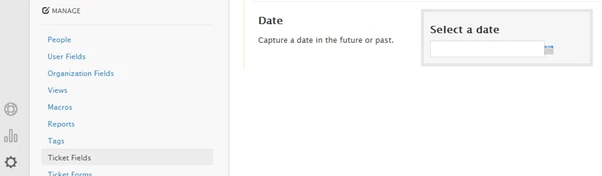
First we need a custom date field. Go ahead and create a Ticket Field and give it a suitable name. I called mine "Remind me before".
Note: If you are an Enterprise plan customer, remember that you will need to add this field to your Ticket Forms also where needed.
Create automation to notify agent of reminder
Next, we need to create an automation. We want to test whether the reminder date is within the next 1 day (we cannot set this to 0 days - I tried!) however, any automation requires a nullifying condition otherwise it will repeat every hour. The obvious solution is to set the reminder date to be blank but unfortunately this (at the time of writing) is not considered nullifying therefore we are going to have to use a tag. I have one called "reminder_set" and we will deal with this later.
For now though, create an automation similar to one the one in the screenshot. In this automation we test for the tag and when the reminder is due and then send an email, blank out the date and remove the tag.
Automation: Notify Agent of reminder
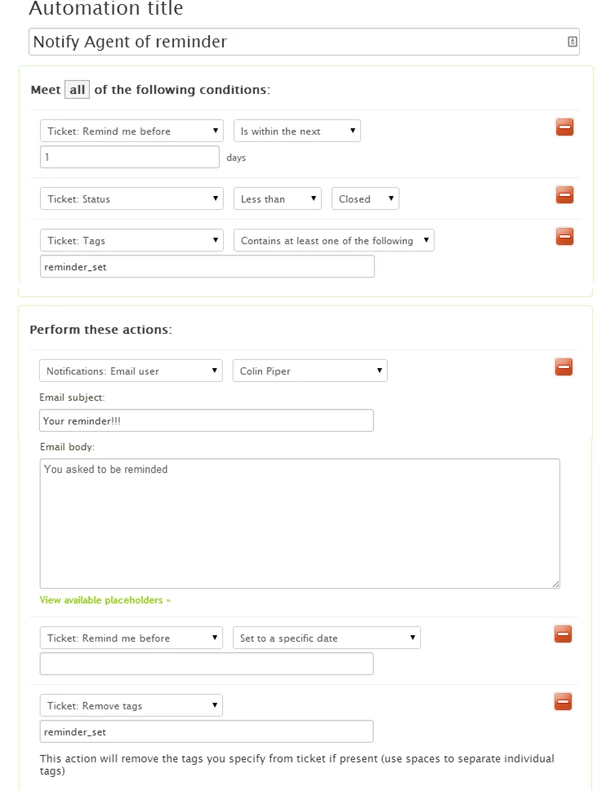
Please note that in my case I have chosen to send all reminders to me personally. You will probably want to email "(assignee)".
Create trigger to add tag on update
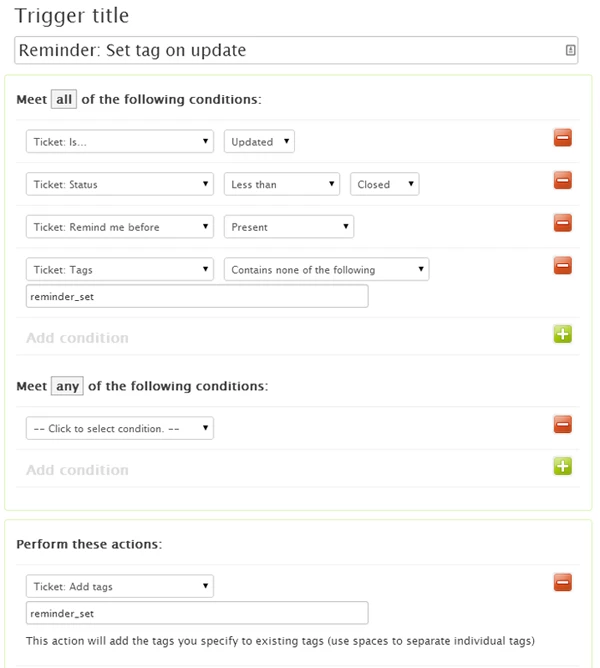
Now we just need to deal with the requirement to have the tag to nullify the conditions of the automation. This requires a trigger. This trigger will fire when a ticket is updated and if a date is present, then add the "reminder_set" tag.
Trigger: Reminder Set tag on update
Well that is it. Perhaps whilst you are there, create a ticket with a reminder to order your mother (spouse, partner, favorite member of Zendesk staff, etc) some flowers on their next birthday. :)
Any suggestions on improving this, then please let me know.