Setting up the notification target
-
Create a Slack incoming webhook using the channel you want to send the notifications to
- From Zendesk, navigate to Settings > Extensions > Targets > add target
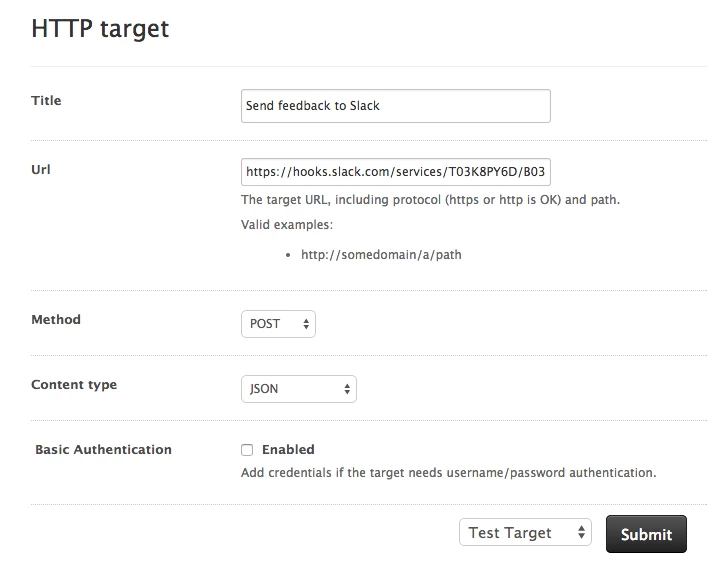
- Click on HTTP Target
- Setup the target to integrate with the previously created incoming webhook
-
Title: A descriptive title
-
URL: use previously created incoming webhook’s URL
-
Method: POST
-
Content Type: JSON
-
Basic Authentication: not necessary
Example application: setting up notifications within triggers
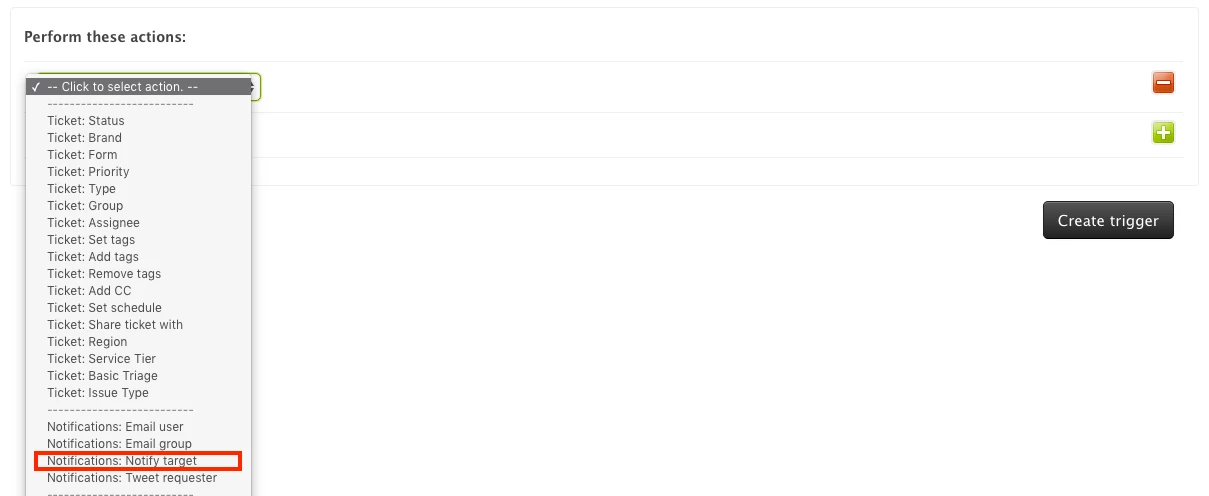
- Under the Perform these actions: section, select Notifications: Notify target
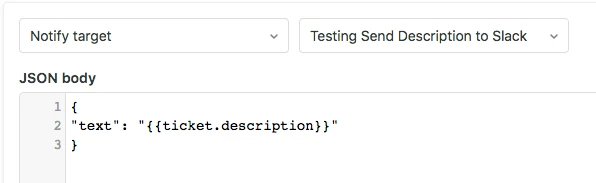
- Select the target previously created
- In the Message: text box, add the notification message in the request form formatted as JSON.
Example:
{
"attachments":[
{
"fallback":"New problem ticket created:bangbang:",
"pretext":"New problem ticket created:bangbang:",
"color":"#D00000",
"fields":[
{
"title":"Subject: {{ticket.title}}",
"value":"{{ticket.url}}",
"short":false
}
]
}
]
}
- Test it! It should look similar to this








Hey Austin,
I see this is your first community posts so I wanted to say welcome to the Zendesk Community!
Are you using the above tip to set up the Slack integration? Since the above uses triggers to send notifications to Slack, I don't believe there's a way to notify the integration when you've been mentioned in Zendesk. Unfortunately, there's no Trigger condition that will look for whether or not an agent has been mentioned on a ticket.
Perhaps others can jump in here if they have an alternative solution for you.