Restricting Satisfaction Surveys by Date | The place for Zendesk users to come together and share
Skip to main content
ZZ59
October 3, 2017

Restricting Satisfaction Surveys by Date

  • October 3, 2017
  • 47 replies
  • 318 views

Introduction

Customers with many tickets can become overwhelmed with satisfaction surveys. This frustrates the customer and can lead to invalid satisfaction metrics. This guide will show how to suppress a customer's notifications after a recent survey.

The inspiration and code comes from Moderator Joel Hellman. The typos are all mine.

Method

 To capture the last survey date, create:

  • A user field to hold the notification date value
  • An Webhook to populate the user field with a date 

To suppress notifications:

  • Create a new automation offering satisfaction without a notification
  • Change the standard automation to record the satisfaction notification date
  • Order your automations to ensure the new automation fires before the standard automation

Custom date field

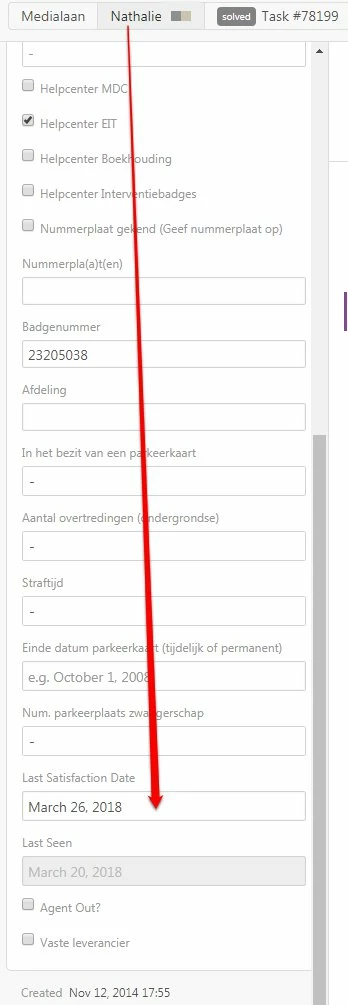
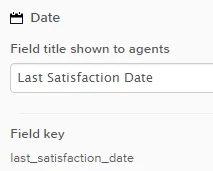
Go to Admin>Manage>User Fields and create a new date field, 'Last Satisfaction Date'.
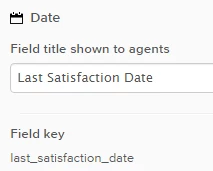
Ensure you have a field key value, 'last_satisfaction_date'. The Webhook will use this.

Webhook

Go to the Admin Centre>Apps and Integrations>Webhooks.

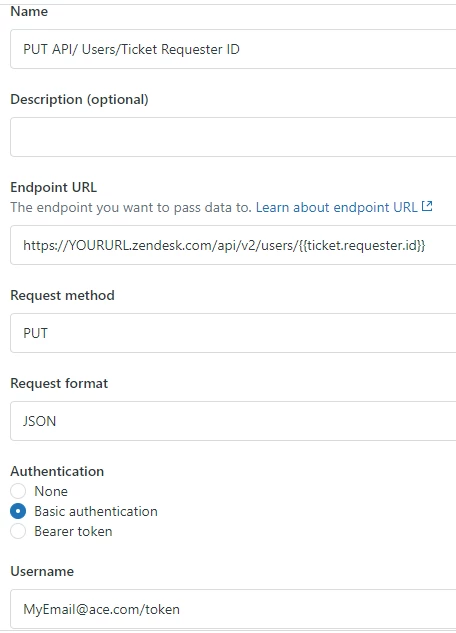
Use the Action menu to create a new Webhook

Title: PUT API/ Users/Ticket Requester ID

URL: https://YOURURL.zendesk.com/api/v2/users/{{ticket.requester.id})

Method: PUT

Content type: JSON

Ensure you replace YOURURL with your own Zendesk.

For authorisation, tick the Basic authentication box. Enter an administrator's email address and password or create an API token.

The screen may look like this:
 

Create a new customer satisfaction automation

Go to Admin>Business Rules>Automations. Find your automation that sends satisfaction notifications. The default is 'Request customer satisfaction rating (System Automation)'. Clone this automation.

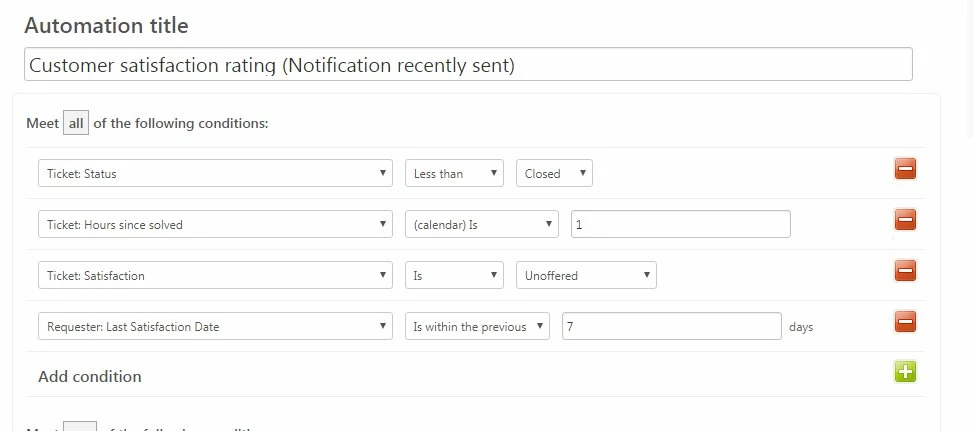
Rename the cloned automation to 'Customer satisfaction rating (Notification recently sent)'. Here is an example of the conditions.
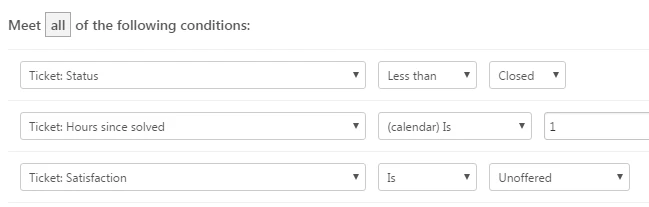
Here the automation will fire if the ticket is not closed, has been solved for an hour and the satisfaction rating is not offered.

Add a further condition to check when satisfaction was last offered by email.

The trigger will now only fire if the satisfaction notification was sent in the last week.

In the Action section, remove the notification action. An action is still need to offer satisfaction to allow the customer to rate the ticket in the Help Centre.

For reporting, you can add a further action adding a tag to the ticket. You can then use Insights to track the impact of suppressing notifications.

Change the standard automation

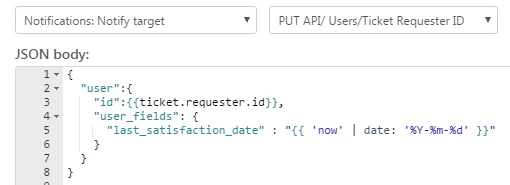
Go to Admin>Business Rules>Automations and edit the standard satisfaction automation. Add a new action to notify target and select the 'PUT API/User/Ticket Requester ID' created earlier.

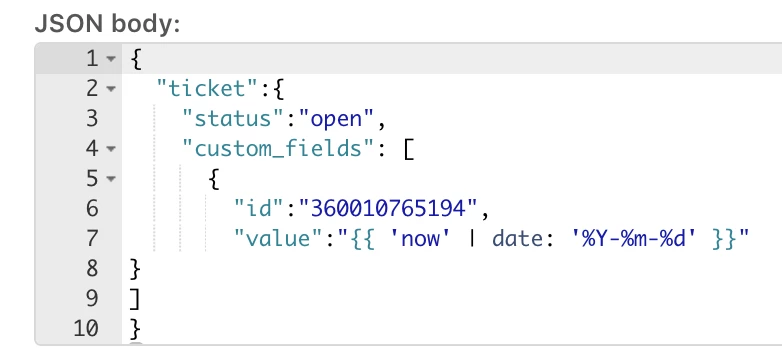
In the JSON body, paste the code:

{
"user":{
"id":{{ticket.requester.id}},
"user_fields": {
"last_satisfaction_date" : "{{ 'now' | date: '%Y-%m-%d' }}"
}
}
}


The action should look like this:
Order your automations

Ensure this new automation appears before the standard automation. Select 'Reorder page' from the more actions menu. Drag the new automation above the system automation.
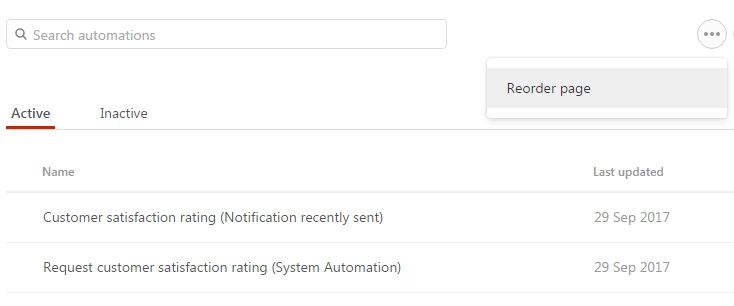
Customers with a recent notification can rate their tickets in the Help Centre.

Customers without a recent notification will receive a new satisfaction survey notification. The user account custom date holds the last notification date.


47 replies

Employee
October 4, 2017

Thanks for posting this, Graeme! I know that lots of folks will find this helpful!

Heather13
Contributor
October 4, 2017

This is incredible! Thank you!

October 4, 2017

This is good. My troubles is that I do not want to offer satisfaction at all if they already rated a ticket within lets say 5 days. In order to do this I think I would scrap the 1st automation and only do the normal one, but add the http target in the perform. My issue is that the condition on the Last Satisfaction Date need to be "NOT within the previous x days". Effectively it would mean if more than 5 days has passed since you were offered, then I want this automation to fire.


Any thoughts on how to accomplish this?

October 4, 2017

James, Thanks!

I need also the same thing as you!


Joel11
October 4, 2017

Hi James and Thomas. Ah that missing condition *tears hair out*. It's certainly a very frustrating oversight by Zendesk when working with automations. 

Regardless of the outcome, you might want to add your voice to this product feature request to fix that: 

Anyway, I have the same approach you request, in that I don't offer CSAT at all if the last CSAT on the customer was too recent. But it's awkward to set up. The solution we presented here is much more straight forward and easier to adopt.

I won't go into the details but - if you want to go the prevent-CSAT-being-offered route - what I do is a bit different:

  • I have triggers which marks tickets as being candidates for a CSAT survey while ticket is still active (e.g. contains at least one public reply, etc)
  • I let my automation that fires on solved tickets of a certain age add a try_fire_csat tag on those tickets when its time to try to send a CSAT 
  • I then have a series of triggers which fires when a trigger is updated and has that try_fire_csat tag.
  • These triggers then checks and stops CSAT from being sent out under a number of circumstances, and also logs the skip reason to a custom field, for reporting
  • One of these skip reasons includes the condition Last Satisfaction Date is Within X days
  • If none of the the triggers that skip CSAT fires, the last trigger sends a CSAT

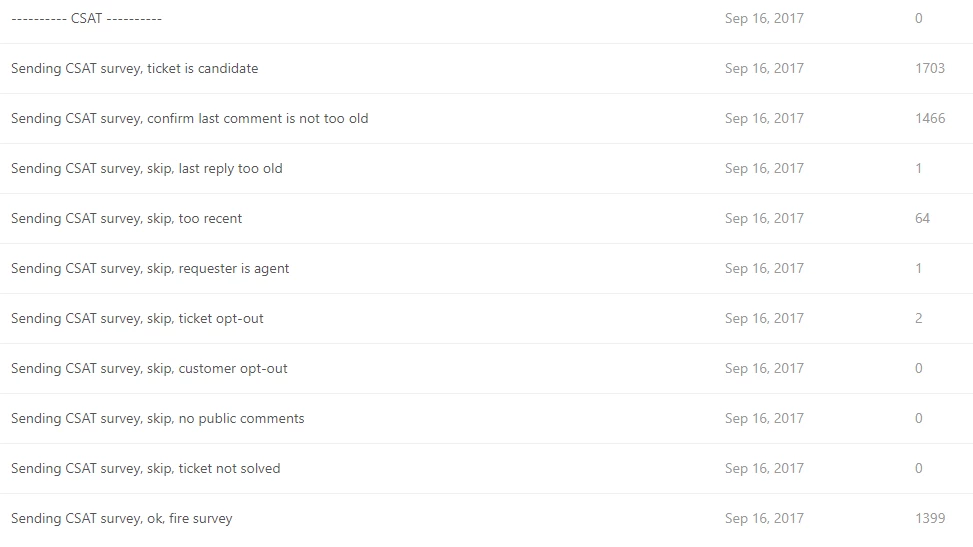
Maybe an illustration from my triggers adds some context.

The last trigger will trigger the CSAT firing, but if any of the skip check triggers matches before that, it will not get fired. (Again, the automation only adds a tag on Solved tickets in the time span for a CSAT, to start this trigger loop)

Some reasons we don't present this alternative approach is that much harder to explain and more prone to mistakes if not set up correctly. 

The version we present here also has the benefit it lets customers rate the tickets on the Help Center if they want, which is pretty neat. (One downside: the satisfaction response rate will be a bit off. )

October 9, 2017

Joel,


What you have done is amazing. I was wondering if you might have some time to have a 1 on 1 discussion about the specifics? I too have a very convoluted trigger set up similar to yours since we use a 3rd party satisfaction software called Customer Thermometer. I would like to share with you what I current do as well in GoodData base don reporting and get your thoughts on how to get a working solution as you have built.


Any thoughts on how we can connect?

October 12, 2017

We have a similar process in place, but it requires a lot less triggers. We do leave tickets on 'solved' longer than the default in zendesk though. But it'll depend on your cooldown period, I guess. 

(https://www.checkmarket.com/kb/how-to-add-a-cool-down-period-to-the-survey-sent-via-zendesk/)

Add a custom user field in Zendesk

First add a custom user field to your Zendesk:

  • Question type Drop-down list.
  • Field title = “Send survey?”
  • Add two drop-down options: “Yes” and “No“.
  • The corresponding tags are also “yes” and “no“. If you are already using these tags, you can of course change these to anything you like. Remember that some conditions or actions are based on these tags so make sure to use the correct tags.

Add a new automation

This automation will make sure that the Send survey? field is set back to “Yes” after the cool-down period. That way a new survey invitation can be sent when the requester contacts your support team again. And the ticket can finally be closed as this will be the final action to take on it.

  1. Go to the Admin section in Zendesk and click on Automations.
  2. Click on Add automation.
  3. Give it a meaningful title, e.g. “Change “send survey?” to “yes” after 28 days and close ticket”.
  4. Add the following Conditions.
    • Ticket: Tags contains at least one of the following: csr: this tag was added by the “Send survey 24 hrs after ticket is solved” automation. You want to be sure that only those tickets are affected.
    • Ticket: Hours since solved (calender) greater than 672: this adds a cool-down period of 4 weeks (672 hours equal 28 days). If you want to send a new survey after 2 weeks (14 days) instead of 4 you put 336 hours (14 days x 24hrs).
    • Ticket: Status is Solved: one of the actions in this automation will be to add a tag ‘csr’ (see below). This is to make sure you only send the survey invitation once.
    • Requester: Send survey? is No: only when this value is “No” should it change back to “Yes”.
  5. Add the following Actions.
    • Requester: Send survey? is Yes: you need to set it back to “Yes” so that a new survey invitation can be sent next time this person contacts your support team.
    • Ticket: Status is Closed: as the status was still “Solved” you can now change it to “Closed”.
  6. Click on Create automation.


Add a new trigger

This trigger will recognize when a survey is NOT sent. That way you can recognize these tickets and close them faster.

  1. Go to the Admin section in Zendesk and click on Triggers.
  2. Click on Add trigger.
  3. Give it a meaningful title, e.g. “Add tag “no_csr” when no survey sent”.
  4. Meet all of the following conditions:
    • Ticket: Status changed to solved: this trigger should fire as soon as a ticket is set to “Solved”.
    • Requester:send survey? is No: the tag ‘no_csr’ should only be added if no survey is sent to the requester this time.
    • Ticket: Tags contains none of the following: no_csr, csr: “no_csr” is the tag this trigger will add, you only want to add this tag if it’s not already there. The tag “csr” is added when a survey is sent. You don’t want to add a “no_csr” tag if a survey was actually sent!
  5. Perform these actions:
    • Ticket: Add tags: no_csr: you’ll be able to recognize these tickets and create separate rules for them (as we’ll be doing in this article as well).
  6. Click on Create trigger.


Edit 2 existing automations


1.”Send survey 24 hrs after ticket is solved”

You need to add a few additional conditions and actions so that the survey is no longer sent for each ticket that is set to “Solved”.

  1. Go to the Admin section in Zendesk and click on Automations.
  2. Click on Edit next to the “Send survey 24 hrs after ticket is solved” automation.
  3. Add no_csr to the condition “Ticket: Tags contains none of the following:”
  4. Add a new conditionRequester: Send survey? is not No.: the survey will only be sent if that field is either empty or “yes”. (it will be empty if a user contacts you for the very first time)
  5. Add another ActionRequester: Send survey? equals No. This way the customer requester field will be set to “No” as soon as the survey invitation is sent.


2. Close ticket 24 hours after it’s set to “Solved”

Automations will only fire for tickets that are less than “Closed”. That’s why you’ll need to tweak this automation a bit.

  1. Go to the Admin section in Zendesk and click on Automations.
  2. Click on Edit next to the automation that closes your tickets.
  3. Meet all of the following conditions:
    • Ticket: Status is Solved: the tickets should be solved before closing them.
    • Ticket: Hours since solved (calender) greater than xx: replace the ‘xx’ by he number of hours you wish to wait before closing tickets for which no survey invitaton was sent. You can keep the same time as the original “close tickets” automation, use the same time-frame as in the cool-down automation or use an even different period of time.
    • Ticket: tags contains at least one of the following: no_csr, no: as these tags indicate that no survey was sent you can simply close the ticket.
  4. Perform these actions
    • Ticket: Status is Closed: all you want to do is close the ticket so this will be the only action.
  5. Click on Submit.

This one is specific for people who send their satisfaction survey with CheckMarket, but I'm guessing it would work for other external software as well. 


Employee
October 13, 2017

Hi Nadia! Thanks for sharing your set up with us!

If you're willing, it would be awesome if you added this as a new post here in Tips & Tricks. This will help your fellow members find it, plus you'll be featured in our Community Roundup and get swag. :)

October 26, 2017

hi Jessie, just did, thanks for reminding me :-)

February 15, 2018

Hi Graeme,

I was about to disable CSAT until I saw this. 

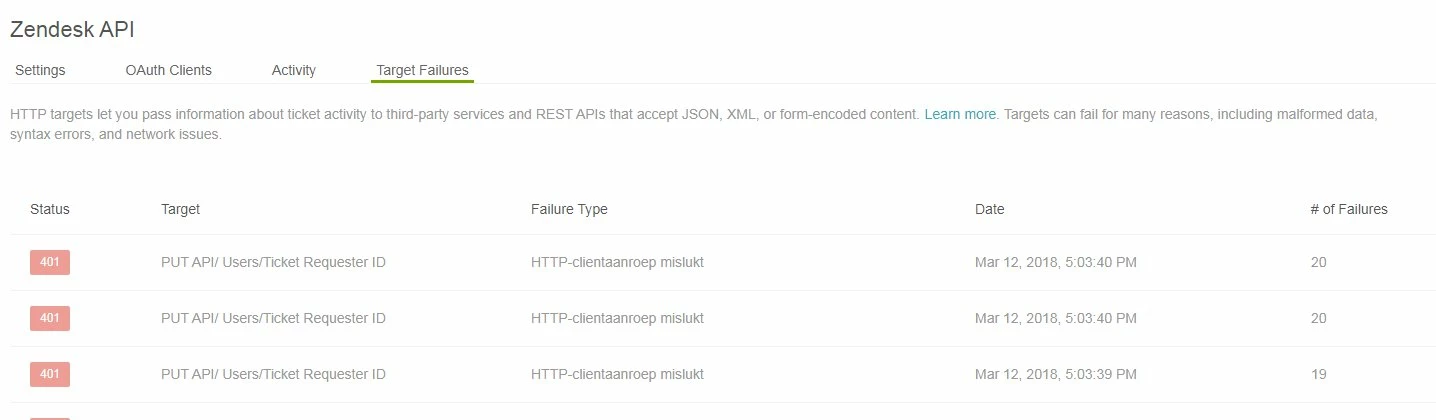
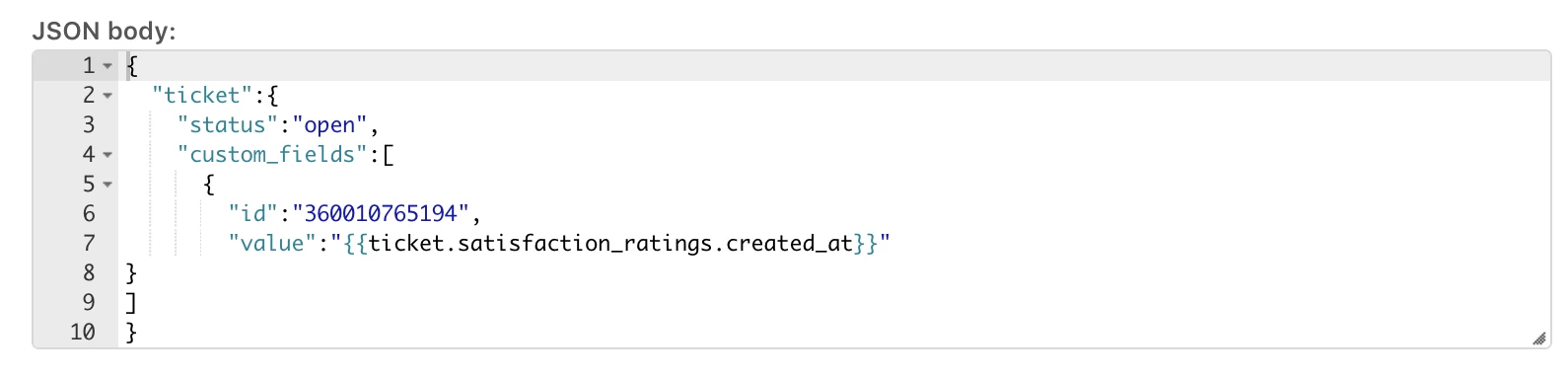
I've just tried testing, but seem to be getting the below error. Would you have any insight on this?

{"error":"RecordInvalid","description":"Record validation errors","details":{"custom_field_values.base":[{"description":"Base Last Satisfaction Date is invalid (expected a date; try YYYY-MM-DD)"}]}}