
Remove/Hide data filter values | The place for Zendesk users to come together and share
Skip to main content
January 9, 2019
Question

Remove/Hide data filter values

  • January 9, 2019
  • 14 replies
  • 70 views

In Good Data there is a way to remove filter options that do not apply. I'm trying to figure out how to do this in Explore.


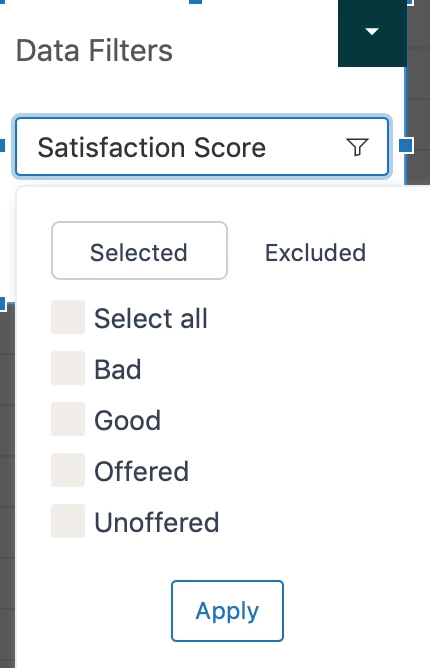
Use case: I have a report that only shows data for rated surveys (good or bad). However, when I apply the Data Filter: Ticket Satisfaction Rating, it shows options for Bad, Good, Offered, Unoffered. I would like to remove Offered and Unoffered from the filter options, since they do not apply.
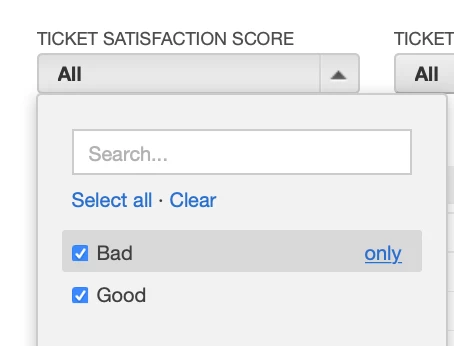
Here is a screenshot of how I have the Good Data version of the dashboard set up
    This topic has been closed for replies.

    14 replies

    Newcomer
    January 10, 2019

    Hi the only way I have been able to do this is by making a custom Attribute.  Not ideal and I would love to see this capability in Explore.

    Stacy15Author
    January 10, 2019

    @ Bill 

    Could you walk me through the steps of creating a custom attribute and using the custom attribute in the dashboard filter?


    If there are Zendesk Articles can you point me to them? I cannot find articles that help me with my scenario.

    Newcomer
    January 11, 2019

    Hi Stacy,


    I used this article as a reference to build one with only agents in a choice list and removing end users

    https://explore.zendesk.com/hc/en-us/articles/235948948-Creating-standard-calculated-metrics-and-attributes?source=search&auth_token=eyJ0eXAiOiJKV1QiLCJhbGciOiJIUzI1NiJ9.eyJhY2NvdW50X2lkIjoxLCJ1c2VyX2lkIjo4Njg2NzA0MTYsInRpY2tldF9pZCI6NDExMjM2NywiY2hhbm5lbF9pZCI6NjMsInR5cGUiOiJTRUFSQ0giLCJleHAiOjE1NDY2MDUzMjF9.TG0Zzi_jIwGmLn5jrOQHV-no-xk3c41voMv3ANwStiM 

    The code is the following:

    IF [Assignee Role]= "Agent" or [Assignee Role]= "Admin" THEN [Assignee Name] ENDIF


    I am not well versed in creating these either ad got the code above from support.
    Community Manager
    January 16, 2019

    Hi Stacy!


    Thanks for jumping in Bill, great suggestion.


    I would inquire why the need to remove them from the filter? If you exclude those values they won't display in the end report thus accomplishing the desired result of hiding the unnecessary data? 


    Cheers,


    Terry

    Stacy15Author
    January 17, 2019

    @TERRY


    The reason I don't want the options in the filter is, those options will not be displayed in the end report. The report is only showing the completed surveys (Good or Bad). So the offered and unoffered filter options do not apply.


    Stacy

    Community Manager
    January 17, 2019

    Hey Stacy,

    Filters will show all valid options, using include / exclude you can choose what data is shown in the report. Modifying what is shown in the filter isn't a feature yet.  Perhaps I am missing the ball on the desired workflow? Is excluding the data from the report the goal? Happy to create a ticket for you to discuss in more detail! 

    Cheers,

    Terry 

    Employee
    January 18, 2019

    Hi Stacy,

    Check out this screencast. It goes through the steps of creating a custom attribute and using the custom attribute in the dashboard filter.

    Please let me know if you have any questions.

    Best,

    Chris

    Stacy15Author
    January 22, 2019

    @Terry

    My query filter is set up to only show the good and bad survey results. The offered and unoffered tickets are not in the report output. The query set up to display the results as a table so Support Management can see the ticket and survey details for these tickets.

    I then added the query to a dashboard so Support Management can see all survey related metrics & data in one place. For this one data element, I would like to give Support Management the ability to filter the results further so they can see the following scenarios

    • Only look at good results (with comments & without comments)
    • Only look at good results with comments
    • Only look at bad results (with comments & without comments)
    • Only look at bad results with comments

    However, when I add a dashboard filter on the Ticket Satisfaction Rating, it displays all possible options even if they are not in the data results. So I would like to hide "Offered" and "Unoffered" as these selections will not bring back any results and could confuse the user. I can do this in Insights and would like to be able to do this easily in Explore.

    You do not need to create a ticket for this issue. I had reached out to Zendesk Support and have a ticket created already. I'm going to try out some of the suggestions provided in the post. Hopefully, I can get one of them to work.

    February 15, 2019

    Hi Stacy,


    I am with you.

    Take our reason for contact custom ticket field. In Good data, if I had set a time period to look at (say, Tickets created week of year=last 2 weeks), and then went to filter using this custom ticket field, I had the option to select to see valid or all options.

    This meant that on valid, it would only show you the options that would show in the data range given. This is particularly useful if you have overhauled sections in the past and have a load of options that havent been used for years.

    Stacy15Author
    February 15, 2019

    @tom kirby


    Per the great feedback in this post, I was able to find the solution to my issue. By creating a custom group and a custom set in Explore I was able to mimic the Insights feature. A few more steps in Explore over Insights, but I think these features will prove beneficial in a lot of other use cases.

    I used this article to walk through the steps

    https://explore.zendesk.com/hc/en-us/articles/235950548-Organizing-values-by-groups-and-sets