
Tip: Collapsible headers in articles or templates (accordions) | The place for Zendesk users to come together and share
Skip to main content
Trapta11
August 18, 2021

Tip: Collapsible headers in articles or templates (accordions)

  • August 18, 2021
  • 141 replies
  • 1020 views

The original tip was posted by Wes. I am simply updating the tip to make it work with the current theme version.

Let gets started without any further delay.

Demo: https://moderatortrapta.zendesk.com/hc/en-us

Step 1: Add the below code (HTML CODE SNIPPET) to the source code of your article.

<div class="accordion">
<p>Section 1</p>
</div>
<div class="panel">
<p>Lorem ipsum dolor sit amet, consectetur adipisicing elit, sed do eiusmod tempor incididunt ut labore et dolore magna aliqua. Ut enim ad minim veniam, quis nostrud exercitation ullamco laboris nisi ut aliquip ex ea commodo consequat.</p>
</div>
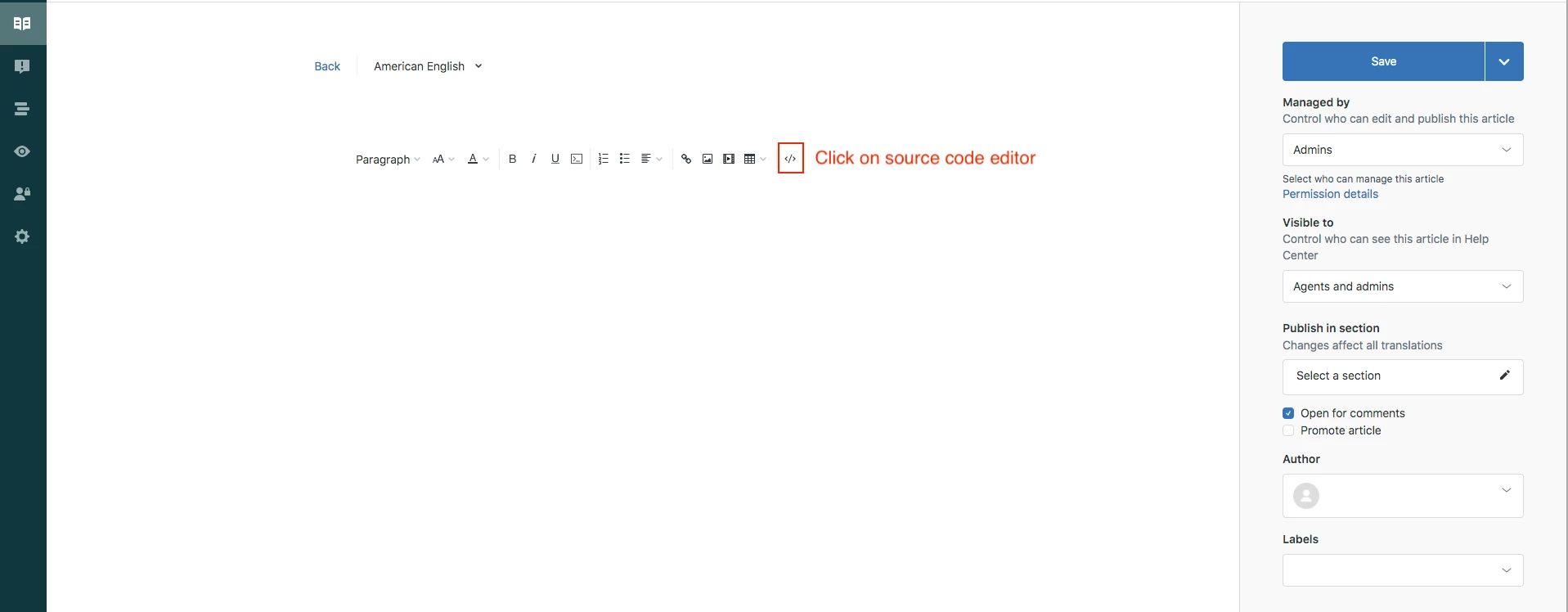
Click OK to save the progress.

NOTE: You can copy and paste the same snippet to add as many accordions as you want.

Step 2: Edit your theme to add the below code at the bottom of your style.css file

.accordion {
background-color: #eee;
color: #444;
cursor: pointer;
padding: 18px;
width: 100%;
border: none;
text-align: left;
outline: none;
font-size: 15px;
transition: 0.4s;
margin-bottom: 10px;
}

.accordion p {
  display: inline;
}

.active, .accordion:hover {
background-color: #ccc;
}

.accordion:after {
content: '\002B';
color: #777;
font-weight: bold;
float: right;
margin-left: 5px;
}

.active:after {
content: "\2212";
}

.panel {
padding: 0 18px;
background-color: white;
max-height: 0;
overflow: hidden;
transition: max-height 0.2s ease-out;
}

Step 3: Edit your theme to add the below code at the bottom of your script.js file

document.addEventListener('DOMContentLoaded', function() {
var acc = document.getElementsByClassName("accordion");
var i;

for (i = 0; i < acc.length; i++) {
acc[i].addEventListener("click", function() {
this.classList.toggle("active");
var panel = this.nextElementSibling;
if (panel.style.maxHeight) {
panel.style.maxHeight = null;
} else {
panel.style.maxHeight = panel.scrollHeight + "px";
}
});
}
});

Save and publish the changes.

YOU CAN USE THE ABOVE CODE TO ADD ACCORDION ANYWHERE THROUGHOUT THE THEME. YOU NEED TO PASTE THE HTML CODE SNIPPET (IN STEP 1) IN RESPECTIVE TEMPLATES WHERE IF YOU WANT TO ADD IT ANYWHERE OTHER THAN THE ARTICLE TEMPLATE. 

Let us know if you face any issues.

Thank you 544374443 for figuring out the issues in the tip and providing the fix for the same.

Thanks

141 replies

Ifra
Contributor
February 8, 2022

@Michael Bui, yes, you can pick the above points to get it done.

1). Create an article as given the HTML structure.

2). Add CSS to your stylesheet -  given above in this tip.

3). Add JS code your script.js file -  given above in this tip.

4). You have done now, your all accordion items will be expanded when you click.


OR


You can explain more about your query.


Thanks

Thank You
February 10, 2022

@ifra

I was more thinking of expand all if I have let's say 10 accordion on the page.  I was looking for the ability to expand them all or collapse them all via a click/button/link.

Ifra
Contributor
February 11, 2022

Hey Michael Bui,

Use the below script code to expand all accordion in one click.

$(document).ready(function(){
  $(".panel").slideUp();
  $(".accordion").click(function (){
    $(".accordion").toggleClass("active");
    $(".panel").slideToggle();
 });
});


And remove max-height from the 'panel' class in the CSS code.


Thanks

Team

Thank You
February 11, 2022

@ifra sorry to keep bothering you, I implemented the code.  If I click on an an accordion, it tries to expand all but I see one or multiple that doesn't expand

Ifra
Contributor
February 12, 2022

Remove your previous added script code which you have been using and add the script code at the end of script.js file which I have shared with you, and then find for '.panel' in your CSS code and remove '.max-height'.

Now you face any issue, share your public Help Centre URL here, so I can figure it out.


Thanks

Ifra


Thank You
February 17, 2022

Hello, I'm wondering how can add some space between the panel and next accordion box. As shown, they are connected and would like a small space between them. Thanks

Tipene
Employee
March 1, 2022

Hi @eduardo22!

You can add space between the panel and accordion box by adding margin to the .panel selector in the styles.css file. Here's an example of how that could look: 

.panel {
padding: 0 18px;
margin: 5px;
background-color: white;
max-height: 0;
overflow: hidden;
transition: max-height 0.2s ease-out;
}

I hope this helps! Feel free to reach out with any questions.

Tipene

March 5, 2022

Do we have an answer on the below?

"do you happen to know how i could turn an accordion step into an anchored link that automatically opens to the right step? i.e. we want to send some of our users directly to the correct step in the process, and have it auto-open where we send them once they've clicked the link. do you know if this is possible with this accordion set-up? "

March 5, 2022

Also how can I update the colour of the sections to not be white since its blending in with the background?

Ifra
Contributor
March 5, 2022

Hey Salim

Do you want an open accordion not closed?

Thank You